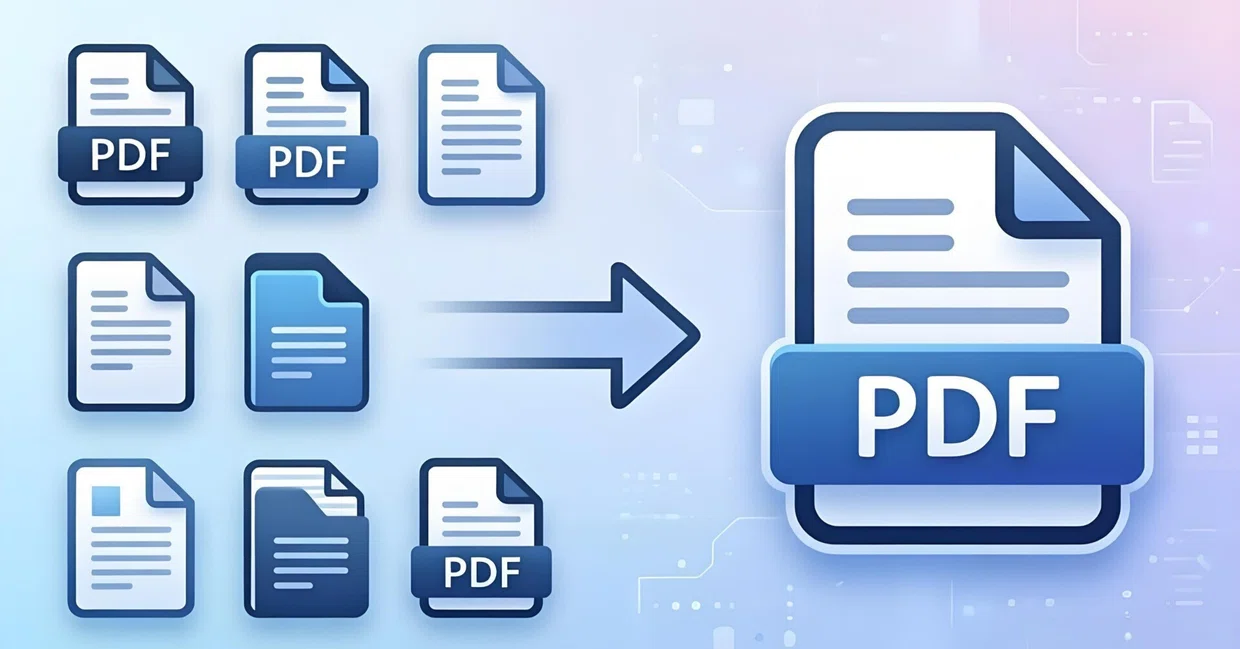
Best PDF Merger Tools in 2026: 10 Free and Paid Tools to Combine PDF Files Online
In our digital-first workflow, managing multiple documents can quickly become chaotic. Whether you are compiling monthly financial reports, assembling legal paperwork, gathering academic research papers, or putting together portfolio items for a client pitch, you often end up with dozens of isolated PDF documents. Instead of sending or storing a dozen separate files, the cleanest and most professional approach is to consolidate them into a single, cohesive document using the best PDF merger tools.
Finding the right software can be overwhelming with hundreds of options available on the web. Some tools require expensive subscriptions, others cap your file sizes heavily on free tiers, and privacy concerns always linger when uploading sensitive documents to online servers.
In this comprehensive guide, we examine the top 10 best PDF merger tools in 2026, comparing their features, pricing models, limitations, security practices, and platform compatibility to help you choose the ideal utility for your specific workflow.
1. Introduction: Why PDF Merger Tools Are Useful
Portable Document Format (PDF) files are the universal standard for sharing documents across different operating systems and devices because they preserve layout, fonts, and images. However, their rigidity makes editing and combining separate documents tricky without dedicated software.
Using a reliable PDF combiner tool offers several distinct advantages:
- Streamlined Organization: Keep related documents together in one master file rather than scattering pages across folders.
- Professional Presentation: Deliver consolidated reports, resumes, or project proposals as a single file to clients, professors, or stakeholders.
- Simplified Sharing & Emailing: Avoid attachment size limits or cluttering email threads by combining multiple files into one streamlined package.
- Time Efficiency: Fast drag-and-drop interfaces allow you to reorder, delete, or merge dozens of pages in seconds.
2. How We Evaluated the Best PDF Merger Tools
To provide an objective and practical comparison, we tested dozens of software options and web utilities based on five core criteria:
- Ease of Use: Is the user interface intuitive? Can users merge files with minimal clicks, or is there a steep learning curve?
- Free-Plan Limits & Pricing: Does the tool offer a genuine best free PDF merger experience, or are features locked behind aggressive paywalls and watermarks?
- Security and Privacy: How do online tools handle uploaded documents? Do they use encryption, and are files automatically deleted from servers? Are offline desktop applications available?
- Performance & File Size Limits: Can the tool handle large multi-hundred-page documents without crashing or lagging?
- Advanced Features: Beyond basic combining, does the software support page reordering, rotation, password protection, and compression?
3. Top 10 PDF Merger Tools in 2026
Here are the 10 best options currently dominating the market for individuals, students, and enterprise environments.
1. Adobe Acrobat Pro (The Gold Standard)
Adobe created the PDF format, so it is no surprise that Acrobat Pro remains the industry benchmark for document management.
- Best For: Professionals and enterprises requiring advanced editing alongside merging.
- Key Features: Seamlessly combine multiple file types (Word, Excel, images) into a single PDF, reorder pages visually, edit text, and apply redactions.
- Security: Enterprise-grade encryption and local desktop processing options.
2. Sejda PDF Desktop & Online
Sejda is a versatile platform offering both web-based tools and a downloadable desktop application. It strikes a fantastic balance between power and simplicity.
- Best For: Quick online tasks and users looking for an online PDF merger without watermark limitations on reasonable file sizes.
- Key Features: Visual page arrangement, splitting, compressing, and secure cloud processing.
- Free Tier Limits: Handles documents up to 200 pages or 50 MB, and up to 3 tasks per hour.
3. Smallpdf
Known for its clean, playful interface and lightning-fast web performance, Smallpdf is a crowd favorite for everyday users.
- Best For: Students and casual users who want to merge PDF files online without hassle.
- Key Features: Drag-and-drop merging, direct integration with Google Drive and Dropbox, and instant conversion tools.
- Security: Uses secure TLS encryption; files are deleted from servers after one hour.
4. ILovePDF
ILovePDF is a feature-rich suite packed with dedicated utilities for splitting, converting, signing, and combining documents.
- Best For: Bulk processing and users who need an all-in-one PDF toolkit.
- Key Features: Merge multiple documents simultaneously, sort files alphabetically or manually, and compress files post-merge.
- Platform Availability: Web, mobile apps (iOS/Android), and desktop software.
5. PDFsam (PDF Split and Merge)
PDFsam Enhanced / Basic is a powerhouse designed primarily for desktop users who prioritize privacy and offline processing.
- Best For: Users seeking a secure, offline PDF merger software for Windows and Mac.
- Key Features: The basic version is open-source and entirely free for merging, extracting, and rotating pages locally on your computer.
- Security: Maximum privacy because your files never leave your local hard drive.
6. Soda PDF
Soda PDF offers a comprehensive document management ecosystem available as both a desktop application and a web service.
- Best For: Small businesses looking for robust cloud-connected document tools.
- Key Features: Merge, convert, e-sign, and review documents with an interface modeled after Microsoft Office.
7. PDF Candy
PDF Candy provides over 40 modular tools through a clean, ad-free web interface. Its merging utility is straightforward and highly responsive.
- Best For: Quick, ad-free online merging.
- Key Features: Reorder files visually, support for cloud storage integration, and batch processing capabilities.
8. Foxit PDF Editor
Foxit is a lightweight, high-performance alternative to Adobe Acrobat, beloved by IT administrators and corporate environments.
- Best For: Enterprise users and heavy-duty document management.
- Key Features: Advanced PDF portfolio creation, robust security settings, and precise page merging controls.
9. AvePDF
Backed by PDF Association expertise, AvePDF is a modern, high-security cloud platform offering advanced document workflows.
- Best For: Privacy-conscious users who prefer online tools.
- Key Features: Clean merging interface, integration with Azure security protocols, and automatic file purging.
10. Mac Preview (Built-in macOS Tool)
If you use a Mac, you already have one of the best free PDF combiners installed on your machine.
- Best For: macOS users who want a 100% free, offline solution without installing third-party apps.
- Key Features: Open a PDF in Preview, show the sidebar as thumbnails, drag and drop pages or entire PDF files between documents, and save.
4. Comparison Table: Features, Pricing, and Free-Plan Limits
| Tool Name | Platform | Pricing Model | Free-Plan Limitations | Offline Support? |
| Adobe Acrobat Pro | Web / Desktop | Paid Subscription | 7-day free trial | Yes |
| Sejda PDF | Web / Desktop | Freemium | 200 pages / 50 MB per task | Yes (Desktop) |
| Smallpdf | Web / Mobile | Freemium | Limited daily tasks | No (Web only) |
| ILovePDF | Web / Desktop / Mobile | Freemium | Speed and file count limits | Yes (Desktop) |
| PDFsam Basic | Desktop | Free & Open Source | None (Fully Free) | Yes |
| Soda PDF | Web / Desktop | Freemium / Subscription | Feature-restricted trial | Yes |
| PDF Candy | Web / Desktop | Freemium | Task rate limits | Yes (Desktop) |
| Foxit PDF Editor | Desktop / Web | Paid Subscription | 14-day trial | Yes |
| AvePDF | Web | Freemium | Standard cloud quotas | No |
| Mac Preview | macOS | 100% Free (Built-in) | None | Yes |
5. Best Free PDF Merger Tools for Students and Professionals
If you are working on a budget or only need to combine documents occasionally, you do not need to invest in expensive enterprise software.
- For Mac Users: Mac Preview is unbeatable. It requires zero downloads, keeps your files completely private on your machine, and lets you rearrange pages with simple drag-and-drop gestures.
- For Windows Users: PDFsam Basic provides a reliable, open-source desktop utility that lets you combine PDF files for free without worrying about file size caps or internet connectivity.
- For Quick Web Tasks: Sejda and ILovePDF offer generous free tiers that let you merge PDF files online seamlessly. Just ensure you are not uploading highly confidential corporate data to public web servers.
6. Best PDF Merger Tools for Businesses
Businesses require tools that guarantee data privacy, support batch processing, and integrate smoothly with existing document management workflows.
- Adobe Acrobat Pro & Foxit PDF Editor: These industry giants offer robust permission controls, digital signatures, batch combining, and compliance certifications required by legal and financial institutions.
- Soda PDF & Sejda Desktop: Excellent mid-tier business solutions that provide collaborative features, cloud integrations, and professional customer support without the steep learning curve of legacy software.
7. Online vs. Offline PDF Merging: Which Is Safer?
When choosing between web-based tools and desktop software, security is the primary factor to consider:
- Online PDF Mergers (Web-based): Tools like Smallpdf, ILovePDF, and Sejda require you to upload your files to their cloud servers, where the merging takes place before you download the final product. While reputable platforms use SSL encryption and automatically delete files within 1–2 hours, they may not comply with strict corporate compliance standards (such as HIPAA, GDPR, or legal privilege) if handling sensitive personal or financial data.
- Offline PDF Mergers (Desktop): Software like PDFsam, Mac Preview, or Adobe Acrobat Pro processes files locally on your computer’s processor and storage drive. Your files never leave your device, making offline tools the safest choice for confidential documents, tax records, medical charts, and proprietary business contracts.
8. How to Merge PDF Files Step by Step
No matter which online tool you choose, the general workflow remains consistent and straightforward. Here is how to combine your documents in three easy steps (using a standard web merger as an example):
- Upload Your Files: Navigate to your chosen tool (e.g., Sejda or ILovePDF) and click the Select PDF Files button, or drag and drop your documents directly into the browser upload box.
- Arrange and Reorder: Once uploaded, thumbnail previews of your documents or pages will appear. Drag them into your desired sequence. You can also rotate individual pages or delete unwanted pages.
- Merge and Download: Click the Merge PDF or Combine button. Once processing finishes, click Download to save your newly consolidated document to your device.
9. What to Look for When Choosing a PDF Merger
To pick the tool that best fits your daily routine, keep these key factors in mind:
- Privacy Policy: If you handle sensitive data, opt for offline desktop software or verify that the online tool deletes files immediately.
- File Size and Page Limits: Check if the free tier restricts large textbooks or extensive reports.
- Visual Reordering: A good tool should let you preview and shuffle pages, not just blindly stack files top-to-bottom.
- Watermarks: Avoid freemium tools that stamp intrusive watermarks onto your final merged document unless you upgrade.
10. Frequently Asked Questions
Q: Can I merge PDF files without installing software?
A: Yes! Tools like Smallpdf, ILovePDF, and Sejda allow you to merge PDF files directly inside any web browser without downloading installations.
Q: Will merging PDFs reduce their quality?
A: Standard merging tools combine the underlying text and vector graphics without altering quality. However, if you choose a tool that applies automatic compression during the merge, you may notice a slight reduction in image resolution.
Q: Is there any risk to using free online PDF mergers?
A: For everyday documents, reputable free tools are very safe. However, for confidential medical, legal, or financial files, it is always safer to use an offline desktop utility like PDFsam or Mac Preview to ensure total privacy.
What is your go-to method for combining documents? Have you tested any of these tools on your workflow? Let us know your thoughts and recommendations in the comments below!